The Free Windows 11 Cleanup Tool That Beats Paid Software: Everything You Need to Know
Windows 11 comes with a built-in, often overlooked cleanup utility that can recover gigabytes of space without costing a penny. Unlike third-party tools that bombard you with ads or subscription fees, this hidden gem—accessible via Disk Cleanup with advanced options—removes system junk, update leftovers, and cache files far more effectively. Below, we answer the most common questions about this powerful feature.
What exactly is the hidden cleanup tool in Windows 11?
The hidden cleanup tool is an extended version of the classic Disk Cleanup utility. While the basic Disk Cleanup shows temporary files and recycle bin, the hidden version—available when you click "Clean up system files"—includes additional categories like Windows Update Cleanup, Delivery Optimization Files, and Windows Defender Antivirus. These extra options often remove several gigabytes of outdated system files that paid cleaners miss or require a subscription to access.
How do I access this hidden cleanup tool?
To launch the full tool, press Windows + S and type "Disk Cleanup". In the list, right-click Disk Cleanup and select Run as administrator. Choose the drive you want to clean (usually C:). Once the scan finishes, click the Clean up system files button at the bottom of the window. This re-scans the drive and reveals the hidden categories that are not shown by default. After the scan completes, check the boxes for items you want to remove, then click OK to delete them.
Why does this built-in tool outperform paid cleanup software?
Paid tools often rely on aggressive scanning that can remove essential system files or require manual intervention to avoid breaking Windows. The built-in Disk Cleanup, especially the hidden system files option, is designed by Microsoft to safely target only redundant data—like leftover Windows update files, temporary installation files, and device driver packages. It also integrates directly with Windows Update to ensure that cleanup doesn't affect future updates. Many paid apps repackage the same core functionality behind a paywall or add bloatware, making the free built-in tool both safer and more efficient.
What categories of junk does this tool remove that others often miss?
The hidden tool specifically targets:
- Windows Update Cleanup – removes old update files that can take up 4–10 GB.
- Delivery Optimization Files – cached update files shared with other PCs.
- Windows Defender Antivirus – old definition files.
- Device Driver Packages – outdated driver versions.
- Previous Windows installations – backups created after major updates, sometimes exceeding 20 GB.
Is it safe to delete all files shown in the hidden cleanup tool?
Yes, for the most part. Microsoft has designed the cleanup to only offer files that are no longer needed for system operation. However, you should be cautious with the "Previous Windows installation(s)" entry—only delete it if you are sure you won't need to roll back to an older version of Windows within the next 10 days. Items like Windows Update Cleanup and Temporary Files are completely safe to remove. To be extra safe, check the description of each item before selecting it. The tool will not let you delete files that could harm your system.
Can I automate this cleanup so I don't have to do it manually?
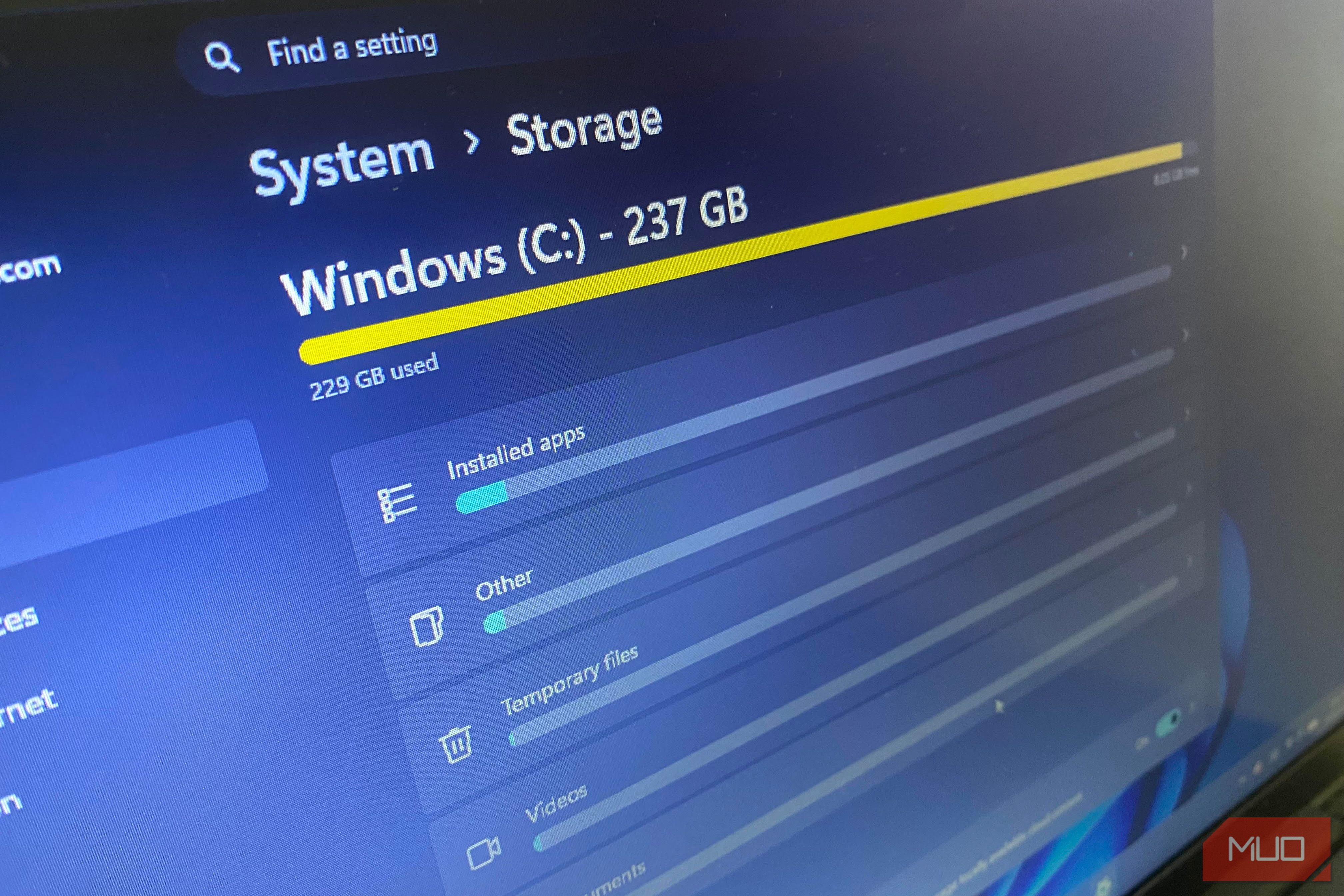
Yes! Windows 11 includes Storage Sense, which can automatically run the same cleanup routine on a schedule. Go to Settings > System > Storage and toggle on Storage Sense. Click Configure Storage Sense or run it now to set when to delete temporary files (e.g., every month) and whether to clean up previous Windows installations after a set number of days. This way, the hidden cleanup tool's benefits are applied automatically without any manual intervention.
How much space can I typically reclaim using this tool?
The amount varies based on usage and update history. On a typical Windows 11 PC that has been running for a few months, you can expect to recover between 5 and 15 GB. If you have recently installed a major feature update (like version 23H2 or 24H2), the "Previous Windows installation" category alone can free up 10–25 GB. Combined with update cache and delivery optimization files, many users report reclaiming over 20 GB total. This is often more than what most free cleaners achieve, and without the risk of removing needed system components.
Related Discussions