Exploring Ptyxis: Key Features of Ubuntu's New Default Terminal
Explore Ptyxis, the new default Ubuntu terminal, through 7 Q&As covering its tab overview, color schemes, container support, and customization options.
Ptyxis is a modern terminal emulator built with GTK4 and libadwaita, designed to integrate seamlessly with the GNOME desktop. It has quickly gained traction in the Linux community and is now the default terminal for Fedora and upcoming Ubuntu releases. Its standout feature is seamless container support for Podman, Distrobox, and Toolbox, making it ideal for modern development workflows. Below, we explore the top features through detailed questions and answers.
What is Ptyxis and why is it becoming popular?
Ptyxis is a terminal emulator that uses GTK4 and libadwaita to deliver a cohesive look and feel within the GNOME environment. Its popularity stems from its modern design, native container integration, and thoughtful features like a visual tab overview and extensive color palette options. Major distributions such as Fedora and Ubuntu have adopted it as the default terminal, citing its alignment with current development practices and its ability to handle complex workflows efficiently. Users appreciate how Ptyxis feels like a natural extension of the desktop, rather than a separate tool.
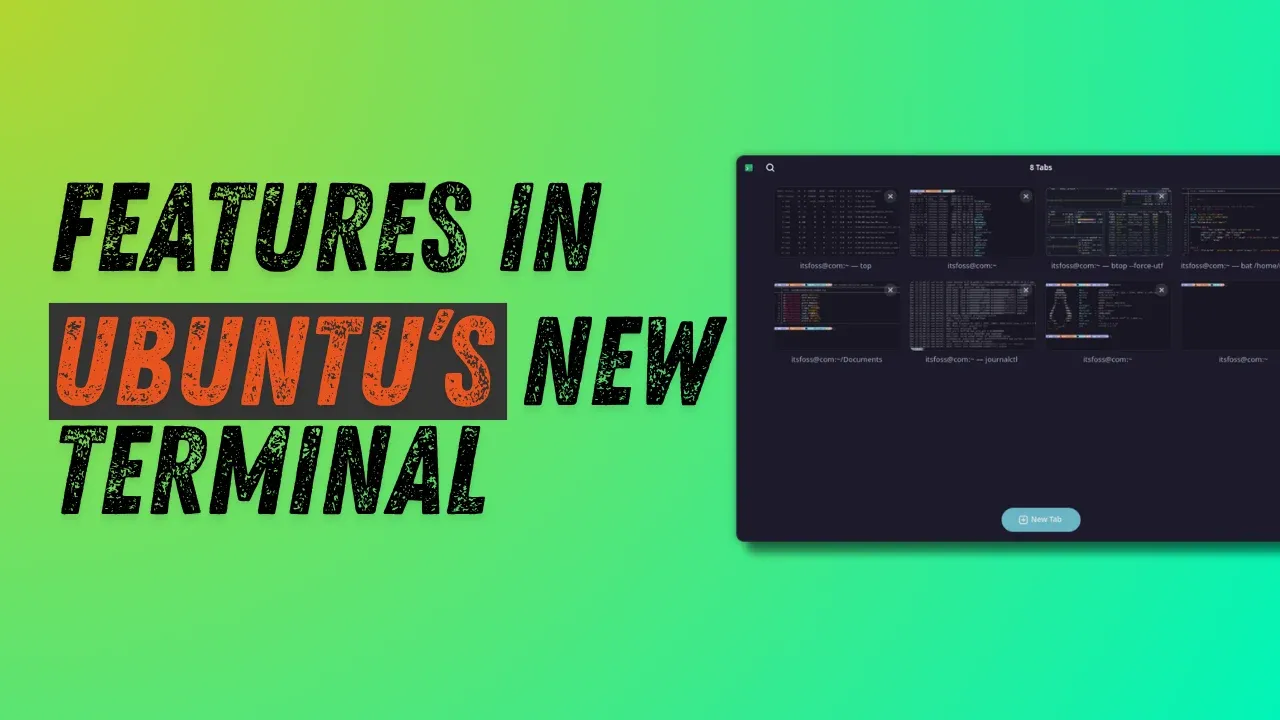
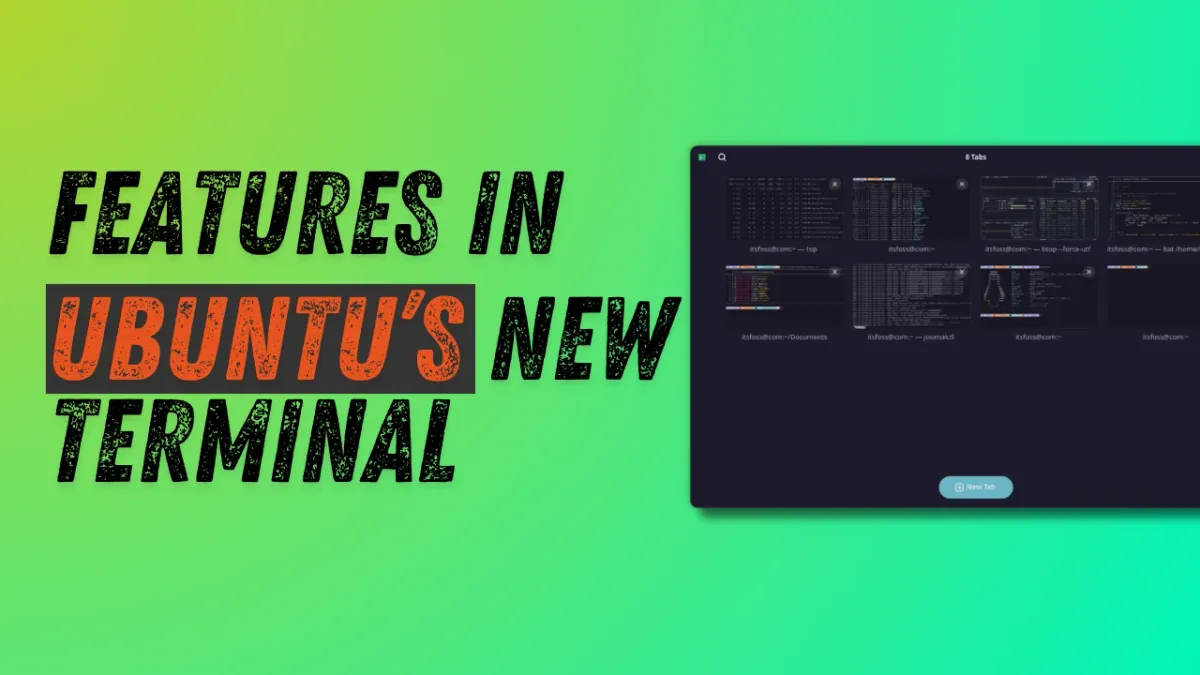
How does the tab and overview system work in Ptyxis?
Unlike traditional terminal emulators that use a standard tab bar, Ptyxis introduces a visual tab selector reminiscent of the GNOME Activities overview. When you have multiple tabs open, clicking the Show open tabs button in the top-right of the title bar opens an interface where each tab displays its title alongside a small preview of its contents. This makes it easy to see exactly what is running before switching back to full view. You can drag and drop tabs to rearrange them, pin important tabs to keep them visible at the top, and right-click to rename tabs for better organization.
How can you rename and search tabs in Ptyxis?
Renaming tabs in Ptyxis is straightforward: right-click a tab in the overview and select Set title. You can then either prepend a name to the default process or create a completely custom title. Once named, you can use the search button in the top-left of the title bar to quickly locate a specific tab. This is extremely helpful when managing many active sessions, as the search filters through all your named tabs instantly. The ability to assign meaningful names and search them turns a chaotic terminal into a well-organized workspace.
What color scheme options are available in Ptyxis?
Ptyxis offers a wide range of preset color schemes that can be accessed via the preferences window (three-dots menu → Preferences). Under the Appearance tab, click Show all palettes to see the full list. Each scheme comes with a neat preview, and your selection is applied immediately. This allows you to tailor the terminal's look to reduce eye strain or match your desktop theme. In my opinion, the variety and ease of switching make this a standout feature for users who value visual customization.
How does Ptyxis support containers like Podman, Distrobox, and Toolbox?
Container support is arguably Ptyxis's standout feature. It integrates natively with Podman, Distrobox, and Toolbox, allowing you to create, manage, and switch between containerized development environments directly from the terminal. You can right-click inside a session to open a new container terminal, or configure preset containers that start automatically. This eliminates the need for separate container management tools and streamlines workflows for developers who rely on isolated environments for testing and building software.
Why has Ptyxis been chosen as the default terminal for Fedora and Ubuntu?
Ptyxis was selected as the default terminal for Fedora and upcoming Ubuntu releases because it aligns with modern development requirements and GNOME's design philosophy. Its GTK4/libadwaita integration ensures visual consistency, while features like container support and the tab overview directly address the needs of developers. The project is actively maintained and receives community feedback, making it a reliable long-term choice. Distribution maintainers also value its performance and adherence to open standards, which reduce fragmentation across different Linux environments.
Can you customize the appearance of Ptyxis beyond color schemes?
Yes, Ptyxis allows further customization through its preferences and configuration files. You can adjust fonts, transparency, and cursor styles in the Appearance tab. For deeper customization, you can modify the terminal's CSS using GTK style sheets or import custom color palettes. Many users share their configurations online; for example, the screenshots in this article use a customized prompt. You can find configuration files on our GitHub repo or watch video tutorials on terminal customization. This flexibility ensures Ptyxis can fit any workflow or aesthetic preference.