April 2026 Patch Tuesday: Comprehensive Guide to the Record-Breaking Security Updates
Overview
April 2026's Patch Tuesday is unprecedented in scale, with Microsoft releasing fixes for 167 vulnerabilities, including a SharePoint Server zero-day, a publicly disclosed Windows Defender privilege escalation bug (BlueHammer), and an actively exploited Adobe Reader flaw. Separately, Google Chrome patched its fourth zero-day of the year. This guide walks you through the critical patches, how to apply them, and what to watch out for.

Prerequisites
- Administrative access to Windows systems (for installing patches)
- Internet connectivity for downloading updates
- Backup of critical data before applying patches
- Knowledge of PowerShell (optional, for automated checks)
Step-by-Step Instructions
Step 1: Understand the Key Vulnerabilities
Before patching, review the most impactful CVEs:
- CVE-2026-32201 (SharePoint Server): Allows spoofing of trusted content or interfaces. Active exploitation reported. Microsoft advisory
- CVE-2026-33825 (Windows Defender – BlueHammer): Privilege escalation bug with public exploit code. Patch renders exploit ineffective per Will Dormann.
- CVE-2026-34621 (Adobe Reader): Actively exploited remote code execution – emergency patch released April 11, 2026.
- Google Chrome zero-day: Fourth of 2026 – update browser immediately.
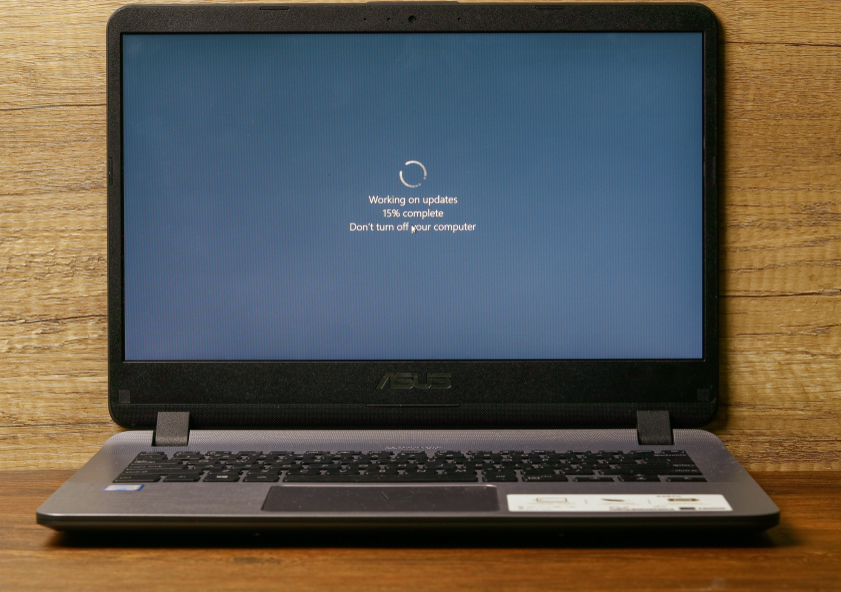
Step 2: Apply Microsoft Patches
Use Windows Update or WSUS. On individual systems:
- Go to Settings > Update & Security > Windows Update.
- Click Check for updates.
- Install all offered patches (cumulative update for your Windows version).
- Reboot if prompted.
For enterprise, deploy via WSUS or PowerShell:
Install-WindowsUpdate -MicrosoftUpdate -AcceptAll -AutoRebootStep 3: Apply Adobe Reader Patch
For CVE-2026-34621, check Adobe Reader version (Help > About Adobe Acrobat Reader). Update to latest via Help > Check for Updates or download from Adobe’s site.
Step 4: Update Google Chrome
Chrome updates automatically, but verify:
Go to Help > About Google Chrome – it will check and install updates. Restart browser.
Step 5: Verify Patch Installation
For Microsoft patches, run in PowerShell:
Get-HotFix -Id KB* | Where-Object {$_.HotFixID -match '2026-04'}Or check installed updates list in Control Panel. For Adobe and Chrome, check version numbers.
Common Mistakes
- Ignoring restarts: Many patches require reboot to fully apply. Skipping leaves you vulnerable.
- Only patching Windows: Third-party software like Adobe Reader and Chrome must be updated separately.
- Assuming automatic updates are enough: Verify installation, especially for critical zero-days.
- Delay due to fear of breakage: Risk of exploitation outweighs compatibility issues; test in staging if possible.
Summary
Don't underestimate these patches – with active exploits for SharePoint, BlueHammer, and Adobe Reader, plus a Chrome zero-day, prompt updating is critical. Use Windows Update, check Adobe and Chrome, and verify installations. This Patch Tuesday sets a new record, and as Adam Barnett notes, AI-driven vulnerability discovery may make such volumes the new normal.
Related Discussions