How to Build a Natural Language Ads Manager with Claude Code and Spotify's API
Turn Spotify Ads API specs and Markdown docs into a conversational tool. No coding needed. Use Claude Code plugins to interpret natural language commands.
Introduction
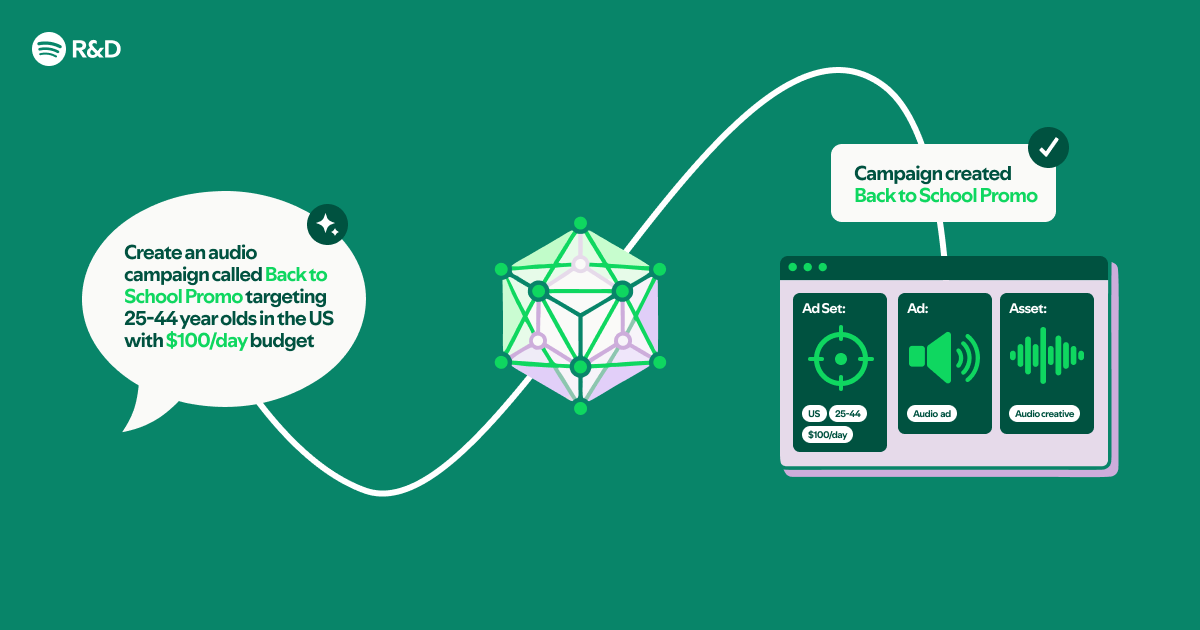
Imagine managing your Spotify ad campaigns by simply typing or speaking natural language commands like "Show me last month's ad spend by campaign" or "Pause the Holiday Promo campaign". With Claude Code plugins and the Spotify Ads API, you can build a conversational interface that turns API specs and documentation into a live, interactive tool — no compiled code required. This guide walks you through the entire process, from gathering materials to testing your first natural language query.
What You Need
- Claude Code – installed and configured (see Step 1)
- Spotify Ads API OpenAPI specification (typically a
.yamlor.jsonfile) - Spotify Ads API documentation in Markdown format (at least the core endpoints, rate limits, and authentication guide)
- Spotify Ads Manager account with API credentials (client ID, client secret, token)
- Node.js 18+ (optional, if you plan to test locally)
- A text editor or IDE (VS Code recommended)
Step-by-Step Guide
Step 1: Install and Configure Claude Code
If you haven't already, install Claude Code on your system. Follow the official installation instructions for your platform (macOS, Windows, or Linux). Once installed, run claude login to authenticate with your Anthropic account. Ensure you have a project directory ready where you'll store your API spec, Markdown docs, and plugin configuration files.
Step 2: Gather Your Spotify Ads API Resources
Obtain the latest OpenAPI specification for the Spotify Ads API. This is usually provided as a single .yaml file. Also collect any Markdown files that describe authentication flows, campaign management endpoints, reporting endpoints, and error handling. Place all files in a folder named spotify-ads-docs/ inside your project directory.
Step 3: Prepare the Documentation for Plugin Consumption
Claude Code plugins work best when documentation is well-structured. If your Markdown files contain large blocks of text, consider splitting them into smaller, focused files (e.g., auth.md, campaigns.md, reports.md). For the OpenAPI spec, ensure it's valid and up-to-date. You can validate it using an online tool or a local CLI like speccy. Any missing endpoints or incorrect paths will break the conversational interface later.
Step 4: Create the Plugin Configuration
Inside your project directory, create a directory named .claude/ and inside it create a file plugins.yaml (or .json). This file tells Claude Code which documents to use. A minimal configuration looks like:
plugins:
  - name: "Spotify Ads Manager"
    description: "Manage ad campaigns, view reports, and control budgets via natural language."
    sources:
      - path: "spotify-ads-docs/openapi.yaml"
        type: openapi
      - path: "spotify-ads-docs/auth.md"
        type: markdown
      - path: "spotify-ads-docs/campaigns.md"
        type: markdown
      - path: "spotify-ads-docs/reports.md"
        type: markdown
Step 5: Define Intent Handlers and Examples
To make the interface conversational, you need to map natural language intents to API calls. Within the same plugin configuration (or a separate file), add an intents section. For each intent (e.g., get_campaign_spend), provide a description, example user phrases, and the corresponding API endpoint and method. For instance:
intents:
  - name: "get_campaign_spend"
    description: "Get total spend for a specific campaign over a date range."
    examples:
      - "How much did the Spotify Wrapped campaign spend last month?"
      - "Show me spend for all campaigns in Q1 2025"
    api_operation:
      path: "/v1/campaigns/{campaignId}/statistics"
      method: GET
      parameters:
        campaignId:
          source: "campaign name mapping"
        startDate:
          source: "date range from query"
        endDate:
          source: "date range from query"
Step 6: Add Authentication Flows
Because the Spotify Ads API requires OAuth 2.0, your plugin must handle token acquisition. Add an authentication block to your plugin config. Specify the OAuth endpoint, scopes, and a link to your stored credentials. You can also define a helper function that refreshes tokens automatically. Claude Code plugins can execute local scripts, so you can use a small Node.js or Python script to manage the token lifecycle.

Step 7: Load and Test the Plugin
Run claude plugin add .claude/plugins.yaml (or the equivalent command for your setup) to register your plugin. Then start a chat session with Claude Code and try a few commands:
- "List my ad campaigns"
- "Show me impressions for the last 7 days"
- "Create a new campaign with a daily budget of $100"
If the plugin doesn't understand a command, review your intent definitions and add more example phrases. Adjust the documentation sources if the context is missing.
Step 8: Iterate and Extend
After basic functionality works, extend the plugin with advanced capabilities:
- Add aggregated reporting intents (e.g., "Top 5 campaigns by ROI")
- Include budget alerts via webhooks or scheduled queries
- Support multi-language commands by adding intents in other languages
- Incorporate error handling guides so the plugin can explain API errors in plain English
Step 9: Document Your Plugin
Create a simple README or Markdown file that explains how to use the plugin. Include example conversations, prerequisite steps, and troubleshooting. This will be helpful for team members or if you share the plugin publicly.
Tips for a Smooth Experience
- Keep your OpenAPI spec up-to-date – The Spotify Ads API evolves. Regularly fetch the latest spec to avoid broken endpoints.
- Use consistent naming – In your intents, match parameter names exactly as they appear in the spec. Mismatches cause failures.
- Test with real credentials – Use a test ad account first to avoid accidentally spending money.
- Leverage the 'dry run' feature – Claude Code often supports a dry-run mode; use it to preview API calls before executing them.
- Write clear example phrases – The more varied examples you provide, the better Claude will understand user intent.
- Separate sensitive data – Never hardcode API keys or tokens in the plugin configuration. Use environment variables or a secrets manager.
With these steps, you can transform static API documentation into a natural language interface that feels like a conversation. The best part is that no compiled code is necessary — just a well-organized set of documents and a flexible plugin system. Happy building!